- 1
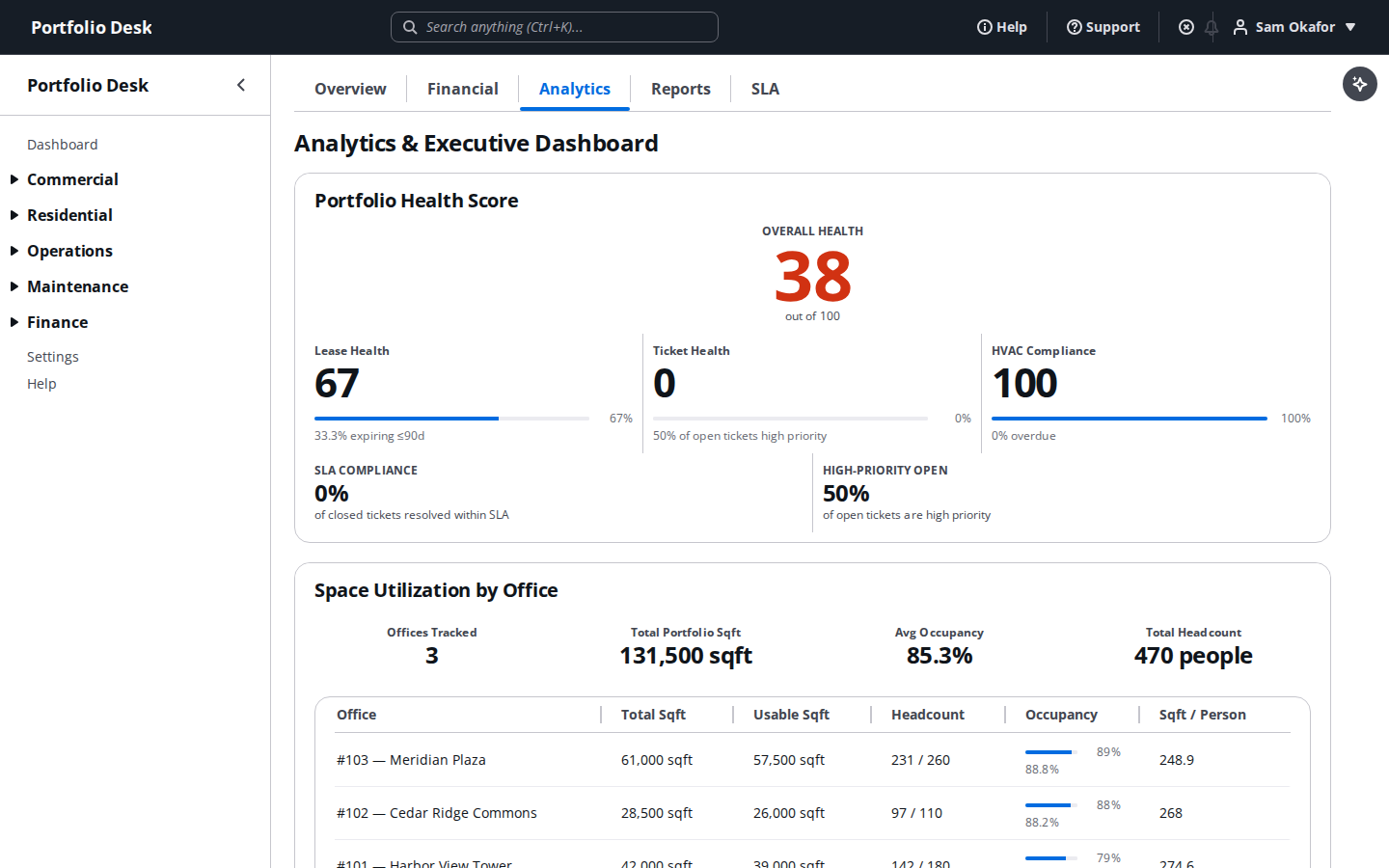
Read the analytics dashboard
Open the portfolio analytics workspace for KPIs and trends across every office and lease — SLA compliance, cost per square foot, and backlog, all in one view.
- 2
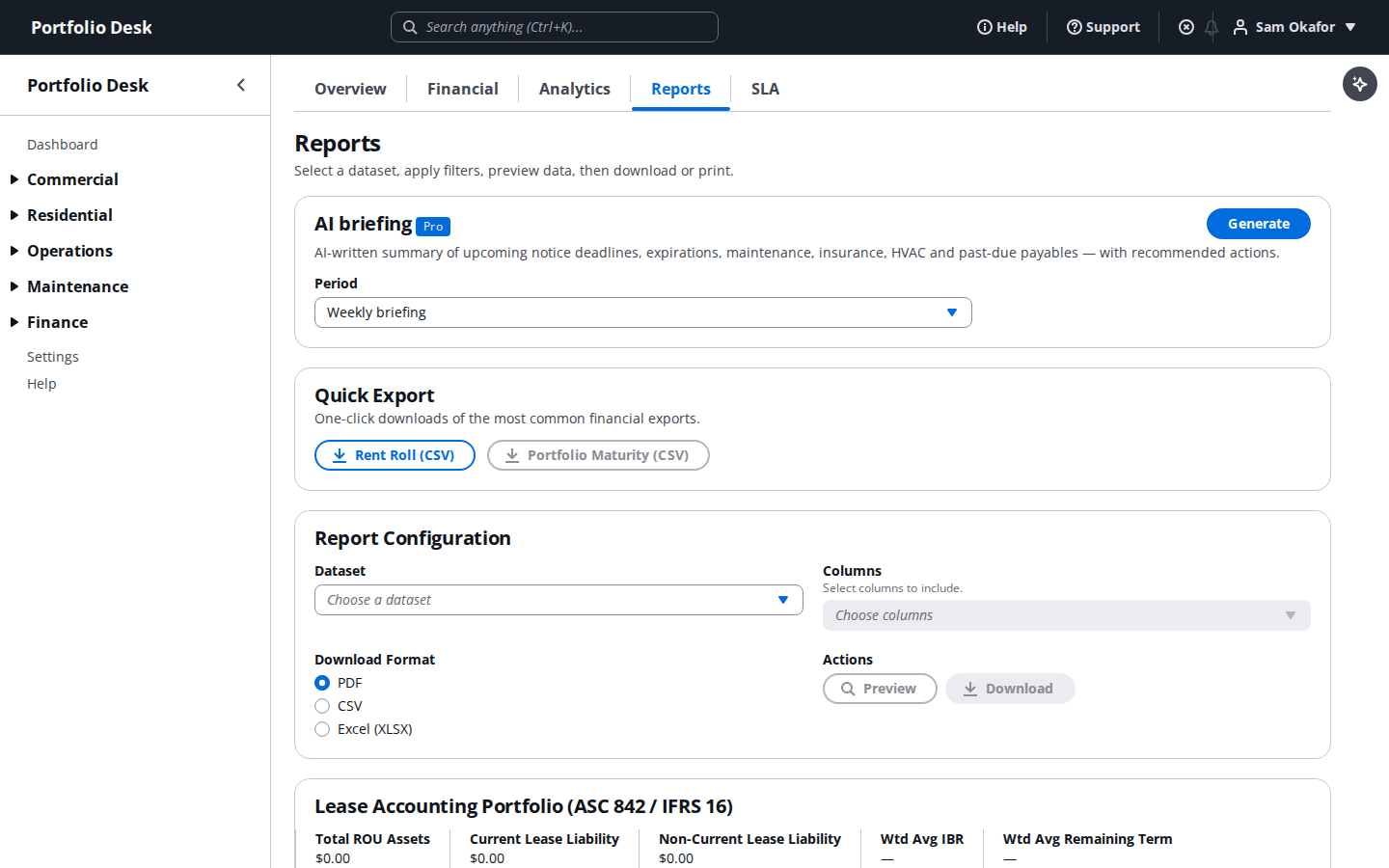
Export a report
Generate polished, board-ready report exports on demand — no need to ask an admin or editor to pull the numbers for you.
- 3
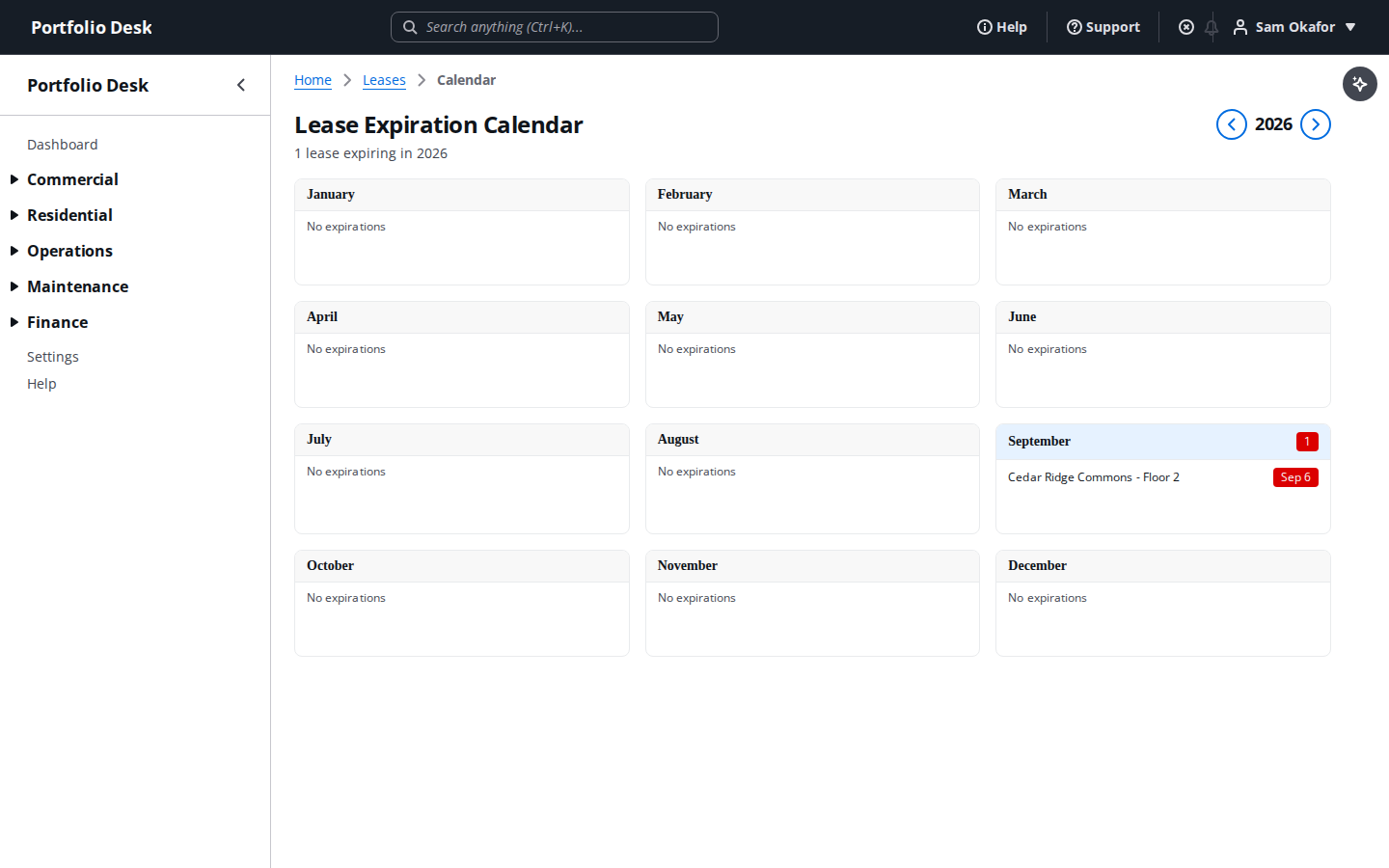
Check the lease expiration calendar
See every upcoming lease expiration across the portfolio laid out on a calendar, so nothing sneaks up on the team.
- 4
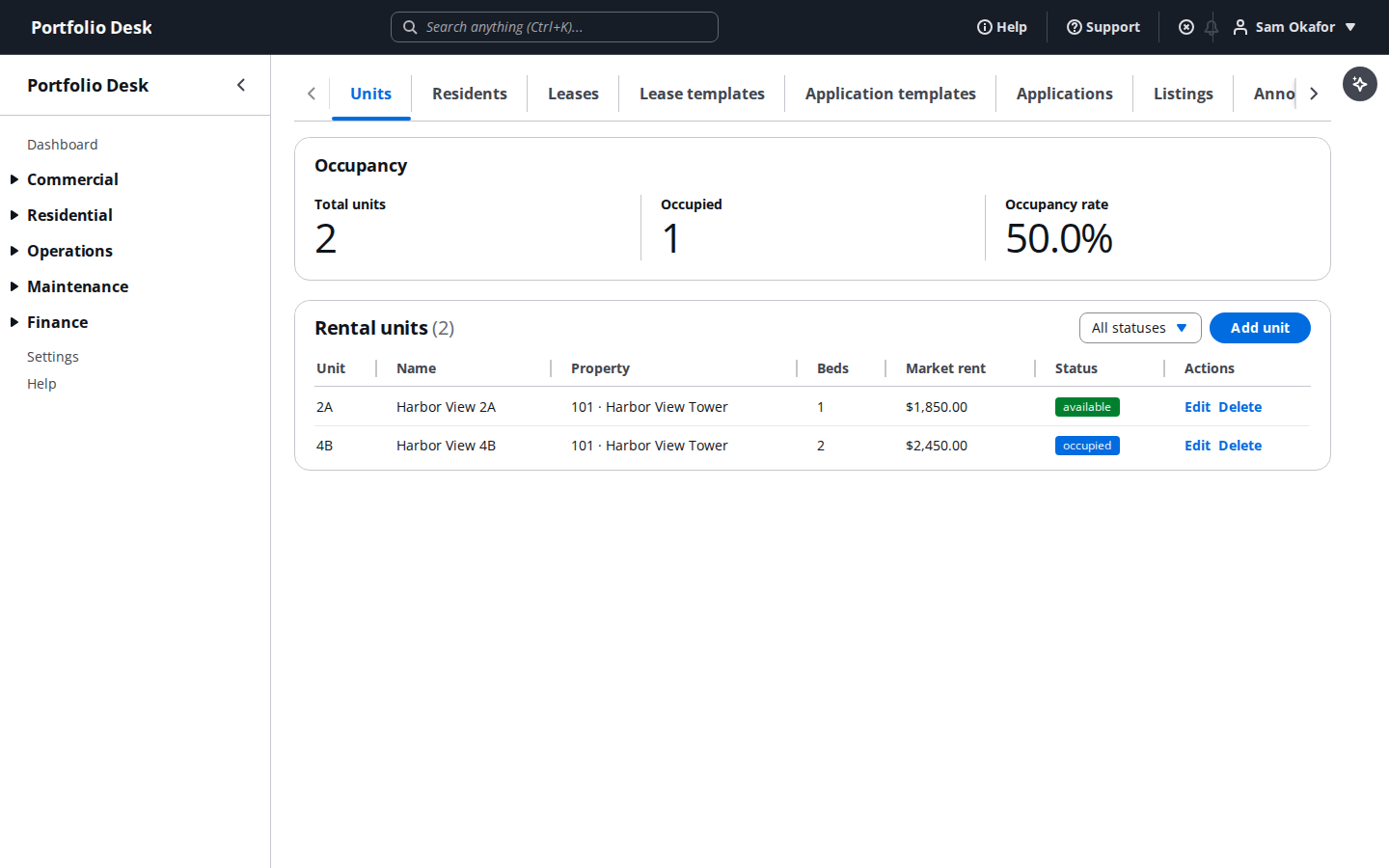
Browse residential units
Get a portfolio-wide view of residential units — occupancy, unit details, and status — without needing edit access.
- 5
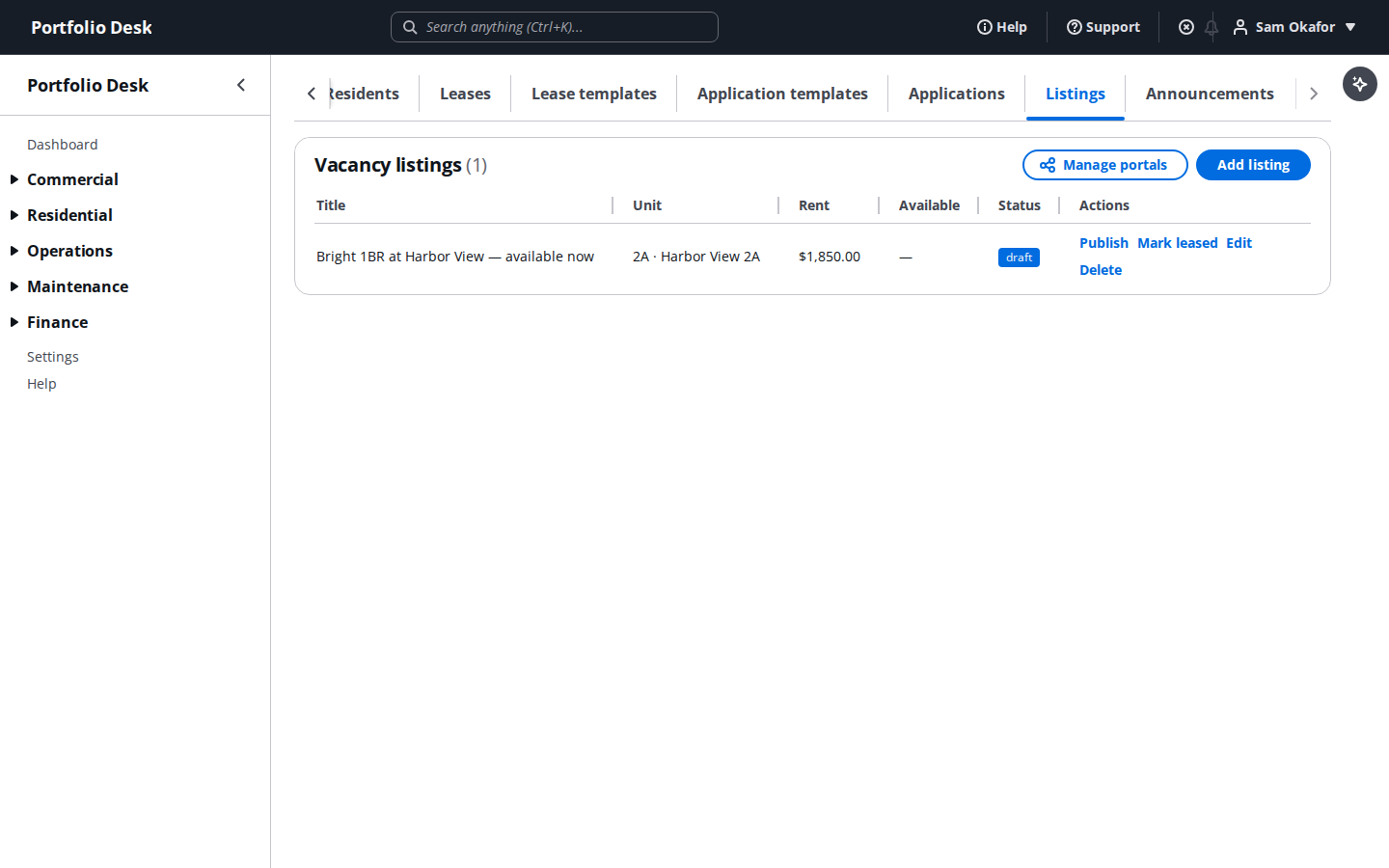
Review vacancy listings
See the marketing pages generated for vacant residential units, exactly as a prospective renter would find them.
- 6
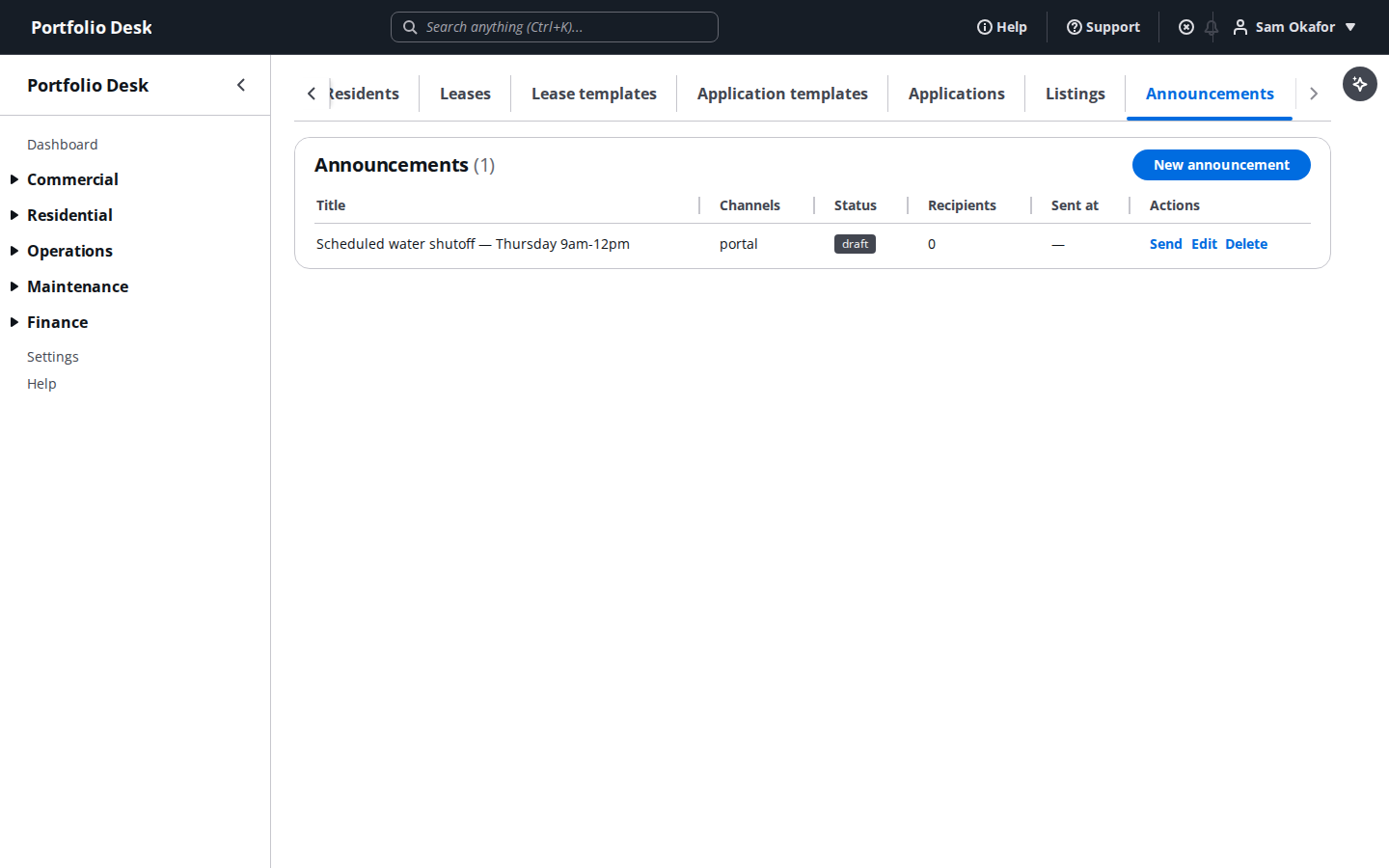
Read resident announcements
Review announcements sent to residents — building notices, maintenance windows, and community updates.
Viewer is the default role every internal user has — editor, accountant, and admin all build on top of this same read-only foundation, they just add write access to their own area.